
What is an elevator and file path display?
An elevator and file-path display are two supporting visuals that help users understand where they are within a multi-level drill-down.
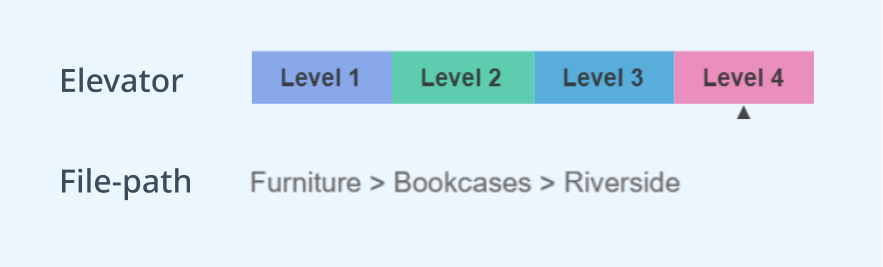
The elevator display shows how many levels are available and highlights the level the user is currently viewing.
The file-path display shows the values selected at previous levels, giving the user extra context as they move deeper into the data.
If you haven’t already, I recommend following my tutorial on building a parameter drill-down first. In this post, I’ll use a few of the calculated fields created there.
This blog post will walk you through step-by-step on how to build an elevator and file path display in Tableau Desktop.
Video tutorial 🥝
Prefer to watch and follow along?
I’ve also created a video tutorial on YouTube that walks you through the process. If you’d rather read at your own pace, you’ll find the full step-by-step instructions written below in this blog.
Here’s how…
LEVEL ELEVATOR
Step 1: Calculated Fields
Start by creating four calculated fields, one for each level of the drill-down.
Each will contain the formula MAX(1.0).
Using 1.0 rather than 1 makes the field a decimal, which Tableau treats as a float.
| Field Name | Calculation |
| c_Elevator | Level 1 | MAX(1.0) |
| c_Elevator | Level 2 | MAX(1.0) |
| c_Elevator | Level 3 | MAX(1.0) |
| c_Elevator | Level 4 | MAX(1.0) |
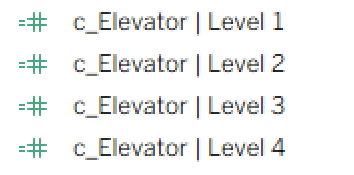
You should now have four elevator calculated fields:
Step 2: Build the chart
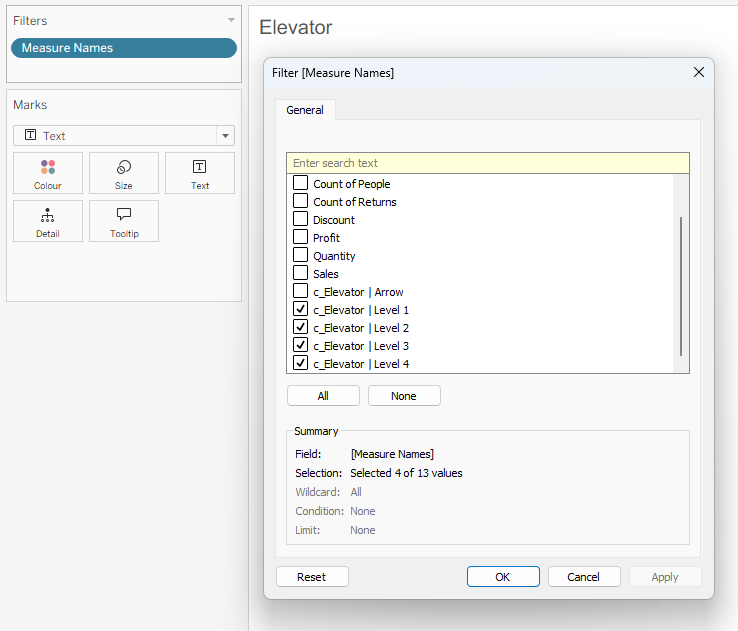
Drag Measure Names onto Filters and select only the four c_Elevator fields you created in Step 1.
Place Measure Names onto Colour marks card and Measure Values onto the Columns.
Change the worksheet fit to Entire View.
Then, edit the axis range to go exactly from 0 to 4.0.
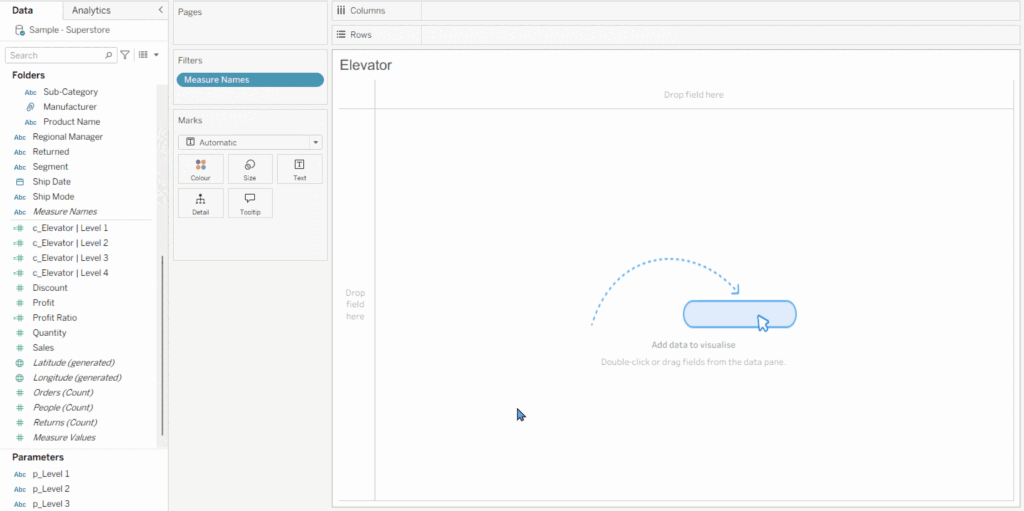
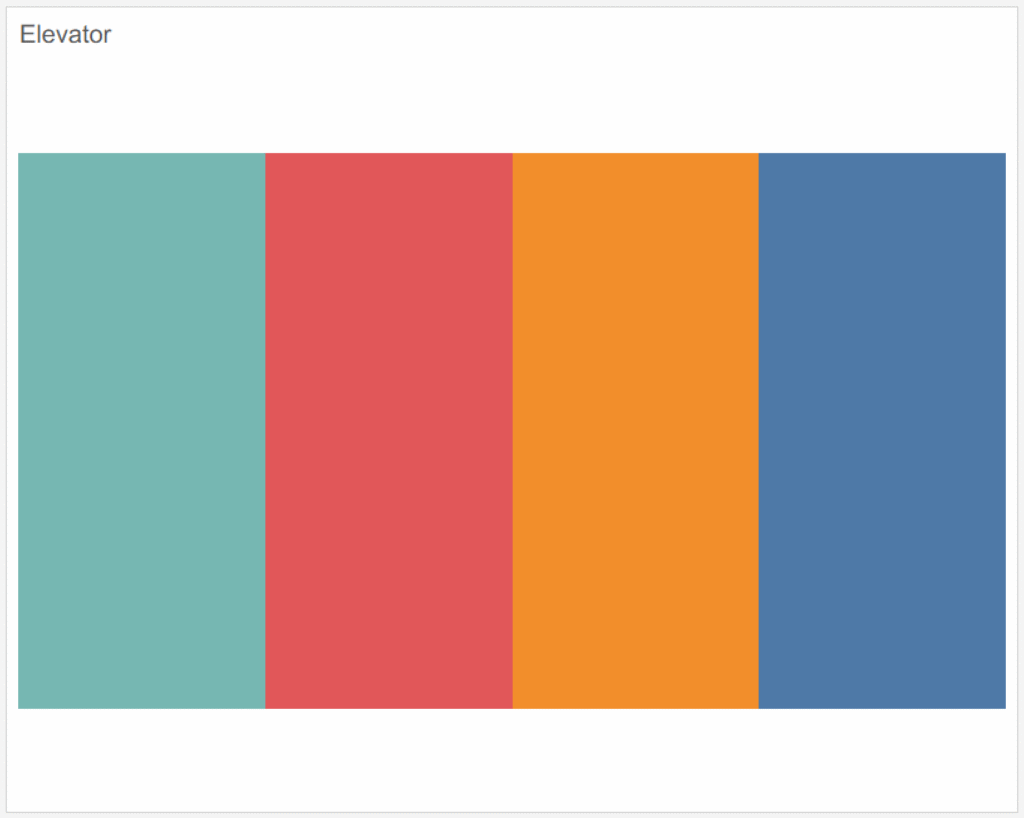
You should now have four equally sized sections.
Hide the axis, remove gridlines and turn off tooltips to clean up the chart.
Step 3: Label the sections
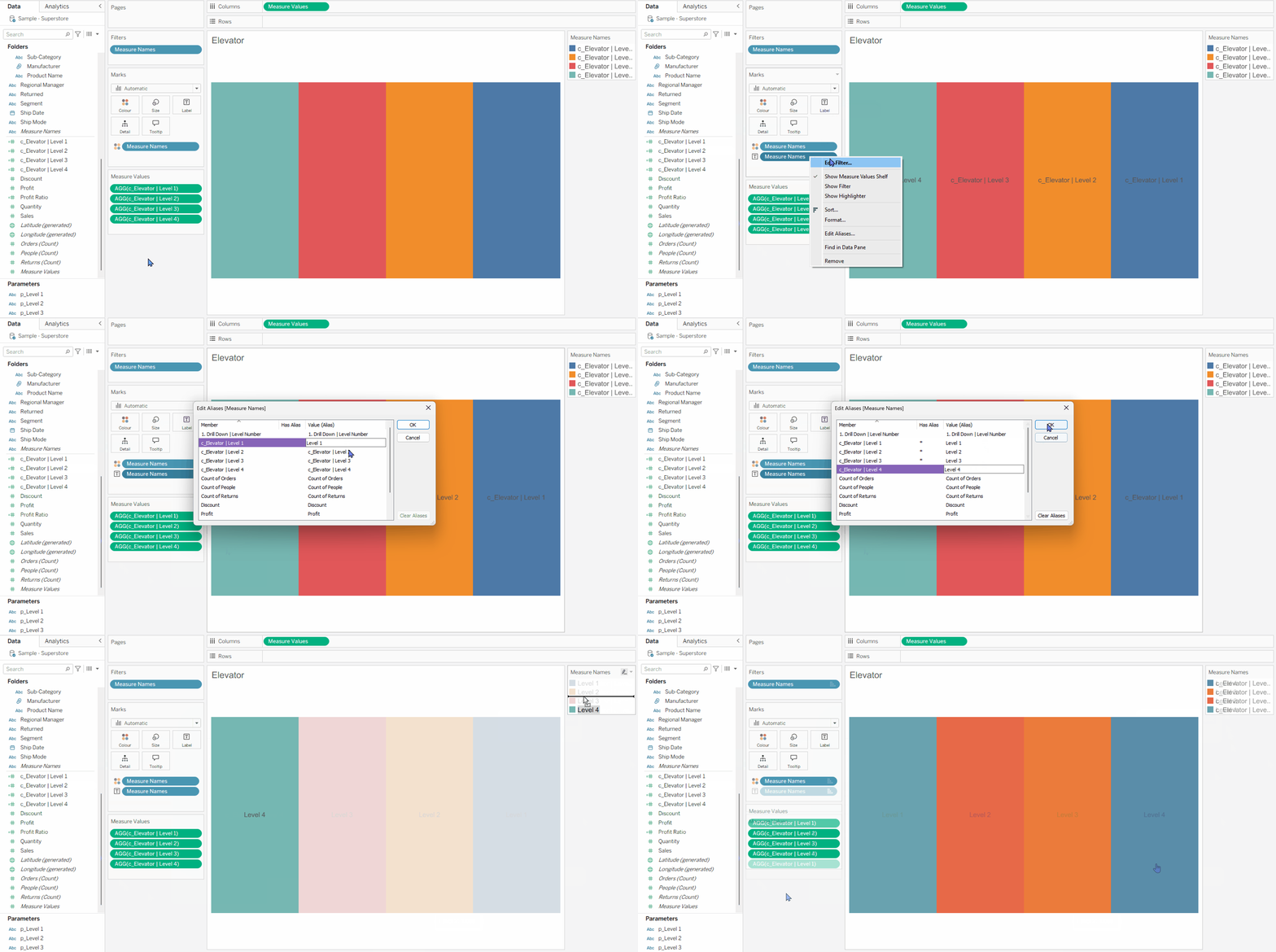
Place Measure Names onto Text.
Right-click on the pill > Edit aliases so that the fields display as:
- Level 1
- Level 2
- Level 3
- Level 4
Then order the levels so they match the order of your drill-down.
I manually reordered mine by dragging Level 4 to the top of the Colour legend, followed by Level 3, Level 2 and Level 1. You can also reverse the axis as a shortcut.
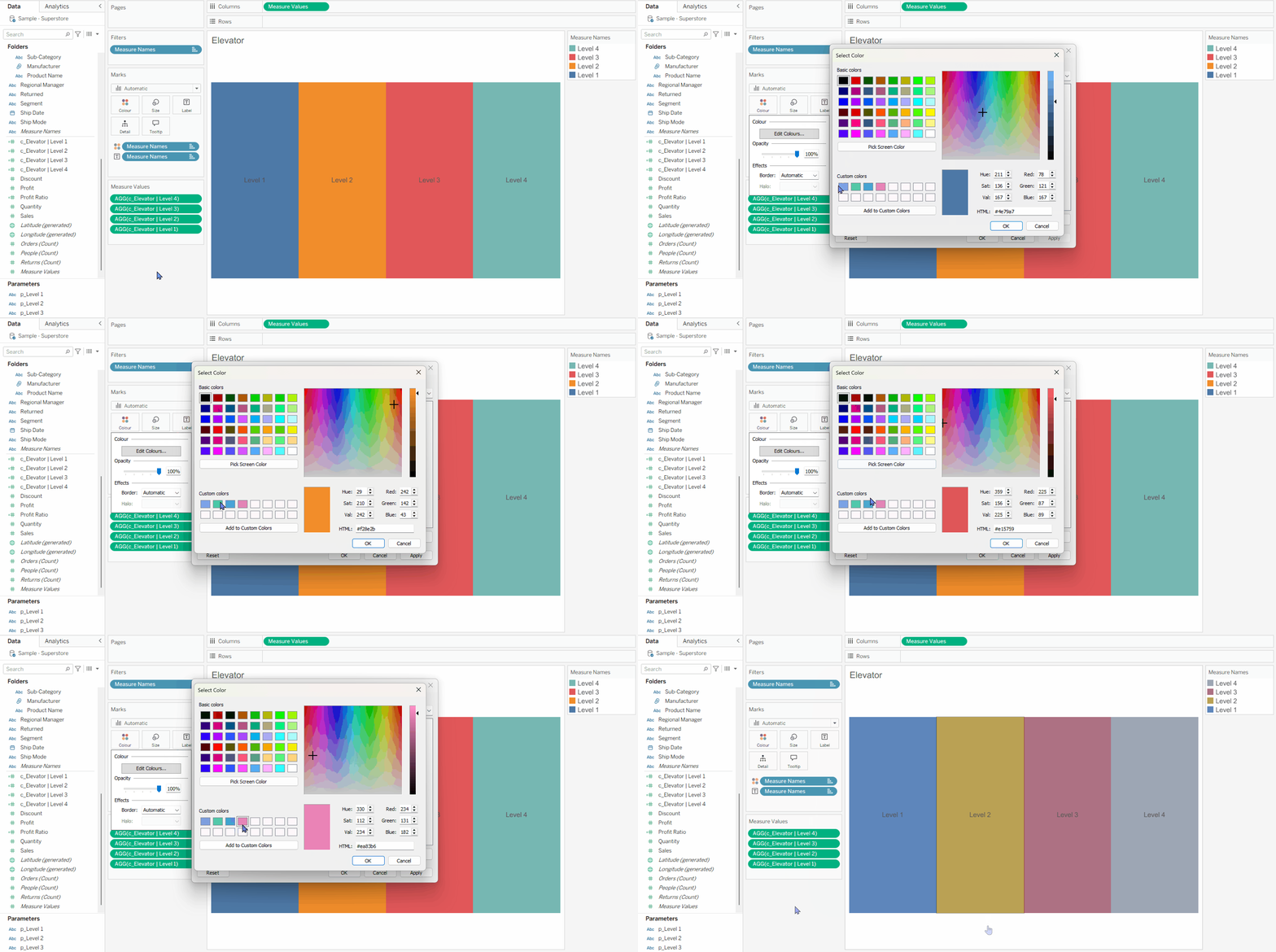
Finally, edit the colour for each level so it matches the colours used in your drill-down.
Step 3: Add the arrow
Create a calculated field called c_Elevator | Arrow.
For this, we’ll reuse the 1. Drill Down | Level Number calculation from the drill-down tutorial.
Drag c_Elevator | Arrow onto Columns beside Measure Values, then create a dual axis and synchronise the axes.
Next:
- Change the Measure Values mark type back to Bar
- Change the c_Elevator | Arrow mark type to Text
- Remove Measure Names from Colour on the Arrow Marks card
- Set the arrow colour to black
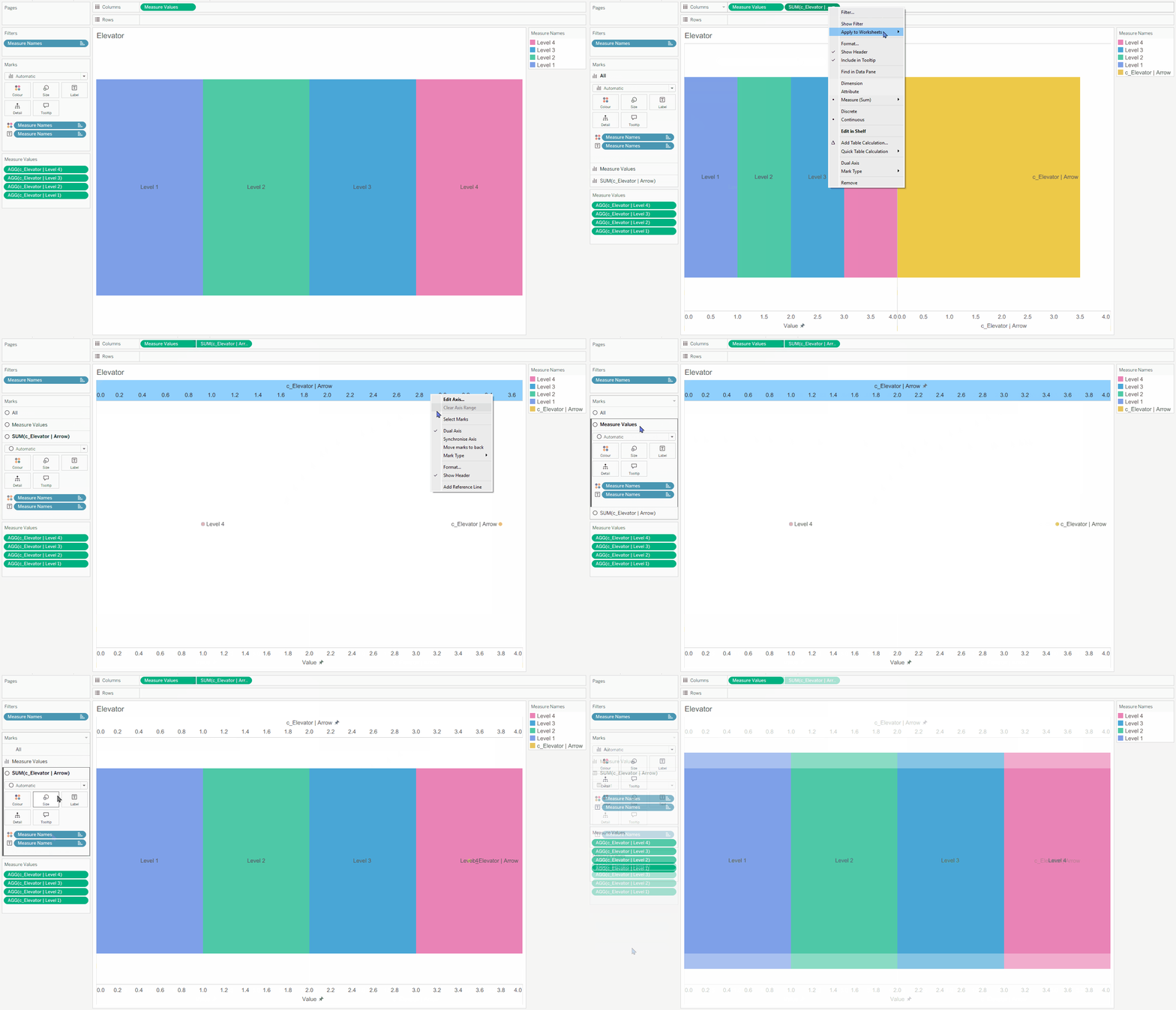
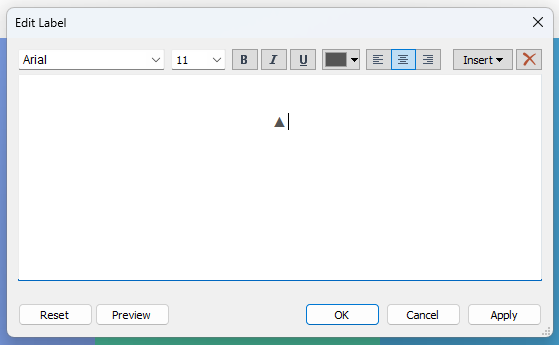
On the c_Elevator | Arrow marks card, select Label, edit the text and add your arrow character ▲.
Your elevator should now look something like this:
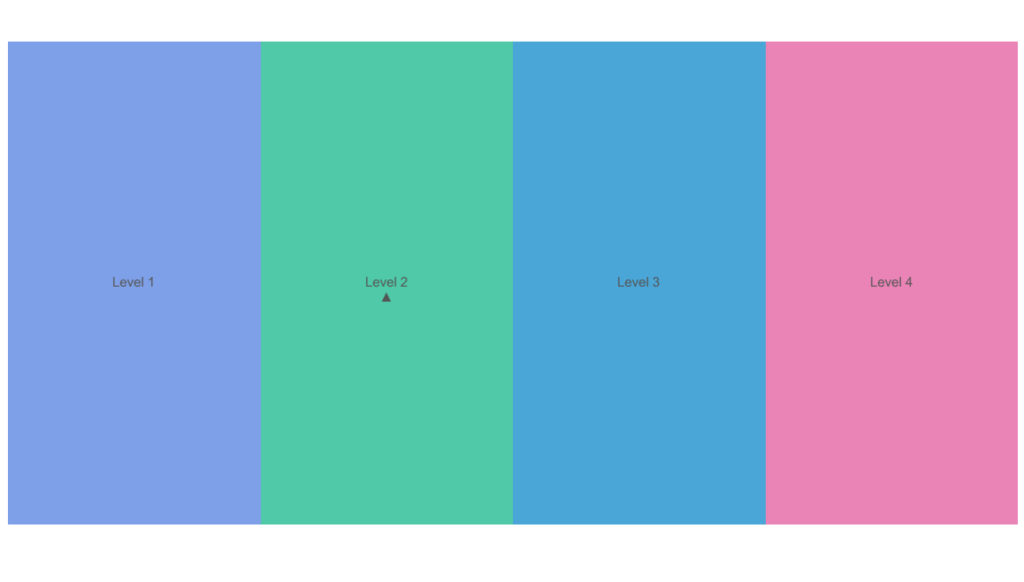
Hide the axis and your elevator is ready to add to the dashboard! ✨
Note: You may need to adjust the width and height of the worksheet, or even change the bar thickness, so the arrow displays clearly on the dashboard.
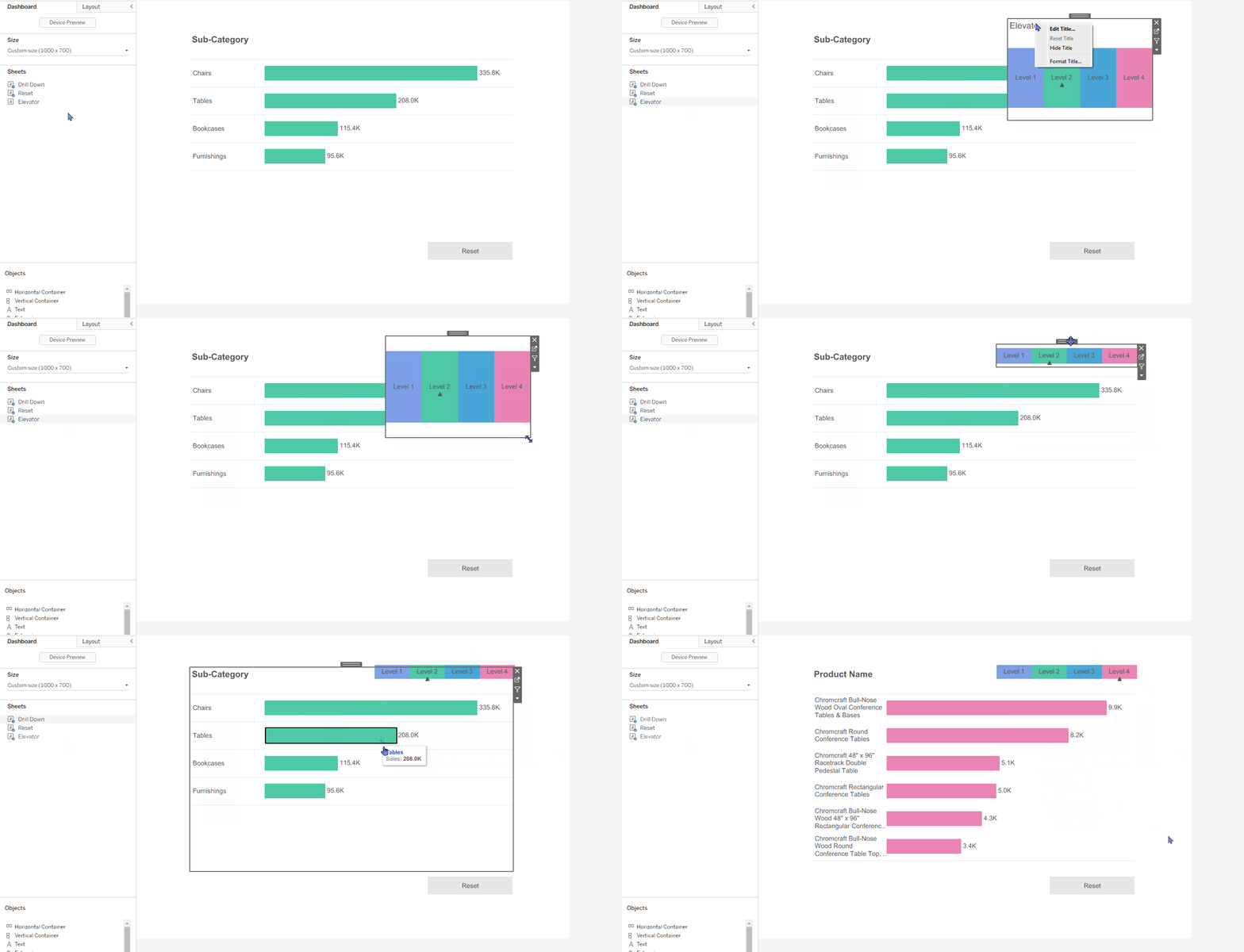
FILE-PATH DISPLAY
Step 1: Calculated Fields
Create a calculated field called c_Filepath. This uses the same drill-down fields from the parameter drill-down tutorial, so make sure you’ve completed that first.
Step 2: Add it to the Title
Go to your drill-down worksheet and drag c_Filepath onto Detail on the Marks card.
Next, edit the worksheet title and insert c_Filepath above 7. Drill Down | Title.
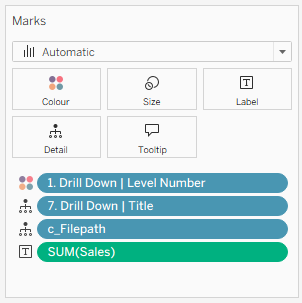
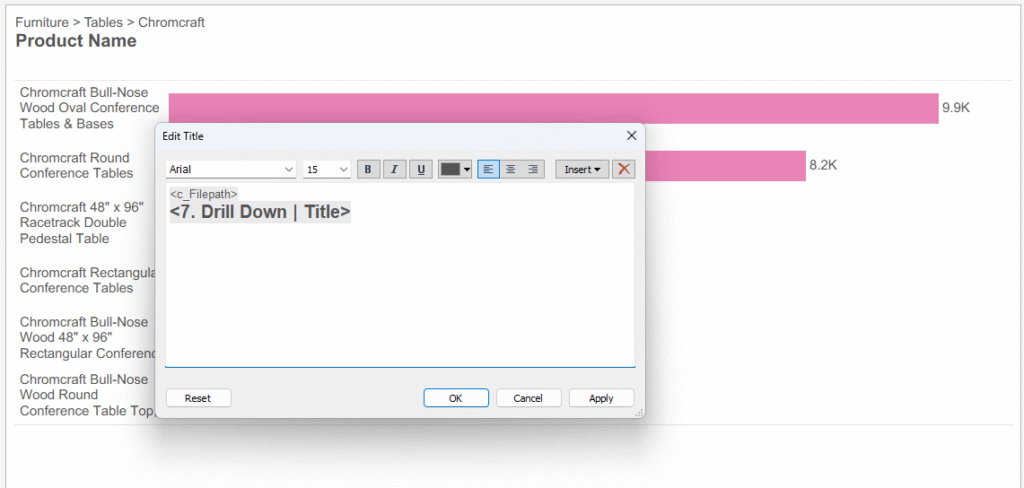
And that’s it! Your file-path display will now update as the user moves through the drill-down. ✨
Final thoughts 🐬
Hopefully, you can now see how the level elevator and file-path display work together to make a multi-level drill-down easier to navigate.
This has been my go-to approach for a long time now. The idea for the elevator display first came to me while working on a client project. They wanted to move away from a multi-sheet dendrogram used to visualise an HR org chart, and I felt a drill-down would be a better fit.
Adding the elevator and file-path display made the experience feel much clearer and more modern, while also helping users understand where they were in the hierarchy. I’ve used the same approach ever since.
I was only able to come up with it because I’d spent time building my Tableau and data visualisation knowledge through practice. Community challenges like Back 2 Viz Basics and Makeover Monday played a big part in that.
So with that, keep experimenting and building. You never know where those ideas might take you! 🌊
If you find this tutorial helpful and give this drill-down method a go, I’d love to see what you create! Feel free to tag me @datavizfairy on Twitter / X or Shreya Arya on LinkedIn ✨